Quick answer
What should a business check before launching a mobile app on the Play Store and App Store?
A mobile app launch checklist for Play Store and App Store covers six areas: developer accounts in your company's name, a privacy policy and data details, a clear store listing, testing on real phones, crash reports and analytics, and a ready backend with a support plan. Plan regular updates after launch too.
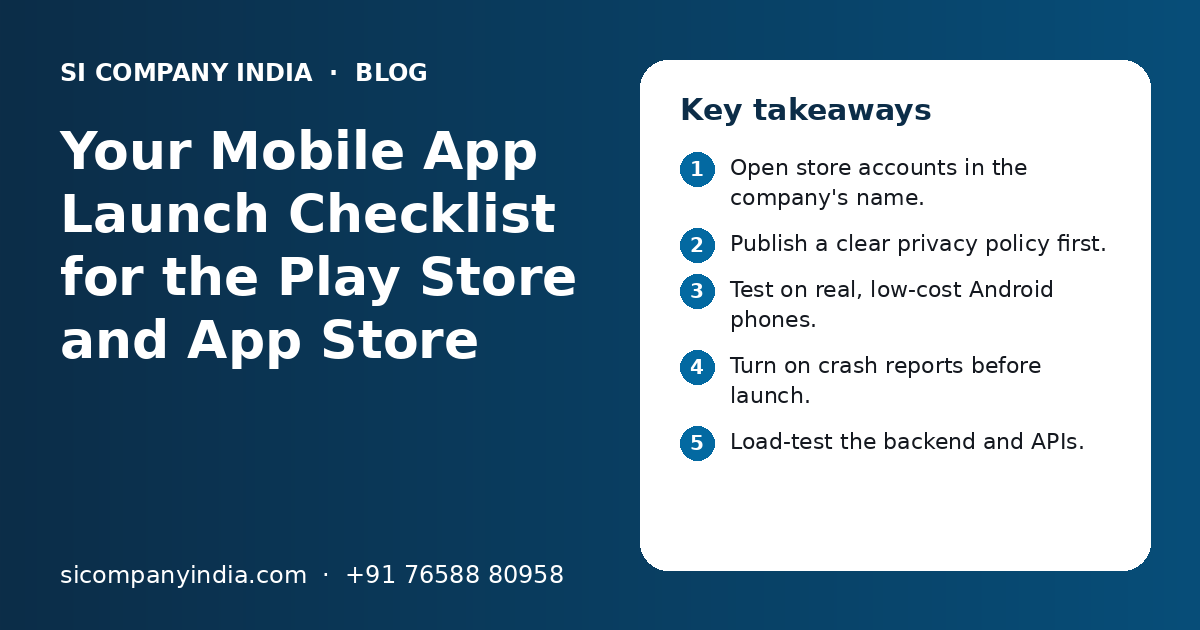
Key takeaways
- Open store accounts in the company's name.
- Publish a clear privacy policy first.
- Test on real, low-cost Android phones.
- Turn on crash reports before launch.
- Load-test the backend and APIs.
- Plan support and updates from day one.
What does a mobile app launch checklist for Play Store and App Store include?
It is a list of tasks to finish before your app goes live: accounts, legal pages, store listing, testing, tracking, backend checks and support. Each item reduces the risk of a rejected app or a bad first week.
| Stage | Main tasks | Who usually owns it |
|---|---|---|
| Accounts | Developer accounts, company details, team access | Owner with the developer |
| Legal and privacy | Privacy policy, terms, data details form | Owner, with legal advice if needed |
| Store listing | Name, description, screenshots, icon, category | Marketing team and developer |
| Testing | Real devices, slow networks, payments, login | Developer and a few real users |
| Tracking | Crash reports, analytics, key events | Developer |
| Backend | Servers, APIs, backups, security | Developer or cloud team |
| After launch | Support, reviews, bug fixes, updates | Support team and developer |
If you are still deciding whether you need an app at all, read our older post on web app vs mobile app for business first.
Why should developer accounts be in your company's name?
Because the account owns the app. If a freelancer or agency opens it in their own name, they control your app, its reviews and its updates.
Google Play uses a Play Console developer account. Apple uses the Apple Developer Program. Both let you register as an organisation, not just as a single person. An organisation account shows your company name as the seller on the store page.
- Open both accounts in the company's legal name.
- Use a company email that will not change, such as one shared by the owner and IT.
- Keep login details with the owner, not only with the developer.
- Add your developer as a team member with limited rights.
- Keep company documents ready, because both stores verify organisations.
- Note the renewal date if the account has a yearly fee.
When we build an app as part of our mobile app development work, we help you set up these accounts in your own name and then publish from there.
What legal and privacy items do you need before launch?
You need a public privacy policy page and honest answers in each store's data form. Both stores ask what data your app collects and why.
The privacy policy should be on your website, open to anyone, with a working link. It should explain in plain words what you collect, why, who you share it with and how a user can ask for deletion.
- Privacy policy page on your website, linked in both store listings.
- Terms of use, if users buy, book or post anything.
- Google Play data safety form, filled in to match the real app.
- Apple app privacy details, filled in to match the real app.
- A way for users to delete their account, if they can create one.
- Clear reasons for each permission, such as camera, location or contacts.
Ask only for permissions the app truly uses. An app that asks for contacts or location without a clear reason can worry users and may face questions in review. If your app is for health, finance or children, take legal advice on the extra rules that may apply.
How do you prepare a good store listing?
Write a clear app name, a short and long description, and add real screenshots that show the main screens. The listing is what convinces people to tap Install.
- 1
Pick the app name
Use your brand name and, if it fits, a simple word about what the app does. Keep it short.
- 2
Write the short description
One line that says who the app is for and the main benefit. Avoid hype words.
- 3
Write the full description
Explain the main features in short points. Use words your customers would type in search.
- 4
Make screenshots
Show four to six real screens in order: home, main task, payment or booking, and account.
- 5
Prepare the icon and graphics
Use a simple icon that is clear at small size. Each store has its own size rules.
- 6
Choose category and contact details
Add a support email, website and privacy policy link. These show on the store page.
If many of your users prefer Hindi or a regional language, think about a translated listing as well. The app screens should match the language you show on the store.
Prepare a demo login for review
If your app needs a login, store reviewers will need one too. Give them a working test account with sample data. A missing or broken demo login is a common reason for delays.
How should you test the app before launch?
Test on real phones, including low-cost Android phones, on slow mobile data, with real payments in test mode. A simulator on a fast laptop hides many problems.
In India, your users may have older Android phones with little storage and patchy 4G. Test for them, not only for the latest phones in the office.
- At least one low-cost Android phone and one older iPhone.
- Slow or unstable mobile data, and no network at all.
- Sign up, login, OTP and forgot password.
- UPI and card payments in test mode, including failed and cancelled payments.
- Push notifications on both platforms.
- Small and large screen sizes, and large font settings.
- App update from an older version, with data still there.
- Battery and data use during normal daily use.
Use the store testing tools before going public. Google Play has internal and closed testing tracks. Apple has TestFlight for beta testers. Invite a small group of staff and friendly customers and collect their feedback.
If the app takes payments, see our UPI payment integration page for how payment flows and failure cases are tested.
Need help with your project?
Talk to the SI Company India team. Free first call, simple advice, clear quote.
Which crash reports and analytics should be ready on day one?
Turn on crash reporting and basic analytics before launch, not after. You cannot fix a crash you never see.
Tools such as Firebase Crashlytics are common for this. The stores also show some crash data in their own consoles. Your developer should check these reports daily in the first weeks.
| What to track | Why it helps |
|---|---|
| Crashes and app freezes | Shows the worst bugs first |
| Installs and uninstalls | Shows if people keep the app |
| Sign-up completed | Finds where new users drop off |
| Main action done, such as order or booking | Shows if the app does its real job |
| Payment success and failure | Finds payment problems quickly |
| Screen load time | Shows slow screens on weak networks |
Keep analytics simple at first. Track a few key events well, not hundreds of events nobody reads. Our data analytics team can turn this data into a simple owner dashboard later.
Is your backend ready for real users?
The app is only the front. The servers, database and APIs behind it must handle real traffic, keep data safe and recover from problems.
- Live server separate from the test server.
- Automatic daily backups, and one test restore done.
- HTTPS on every API call.
- Load test for your expected number of users at peak time.
- Alerts when the server is down or slow.
- Admin panel ready for your team to manage orders, users and content.
- Links with your CRM, billing or Tally tested with real data.
Plan for spikes. A festival offer, a WhatsApp broadcast or an ad campaign can bring many users at once. Cloud hosting can scale up for these days. Our cloud solutions page explains how this is set up.
If the app talks to other systems, every link must be tested. Our API integration page covers how apps connect with CRMs, ERPs and payment gateways.
What support plan do you need after launch?
Decide before launch who answers user questions, who replies to store reviews, and how fast bugs get fixed. Users judge a new app in its first few days.
- A support email and phone or WhatsApp number shown in the app and on the store.
- An in-app help or FAQ screen for common questions.
- A named person who reads and replies to store reviews.
- A simple way to sort issues: urgent bug, normal bug, feature request.
- A developer on call for urgent fixes in the first weeks.
Many Indian customers prefer WhatsApp for help. A WhatsApp Business API link can send order updates and answer common questions without extra staff.
Reply to reviews politely, even bad ones. Thank the user, say what you are fixing and ask them to update the app later. Other people read these replies before they install.
How should you plan updates after the first release?
Plan a small fix update soon after launch, then regular updates. Both stores also change their rules from time to time, so apps need upkeep even when features do not change.
| Update type | When | What it covers |
|---|---|---|
| Quick fix release | First weeks after launch | Crashes and bugs found by real users |
| Regular update | On a set rhythm, such as monthly | Small improvements and new features |
| Platform update | When Android or iOS releases a new version | Keep the app working and meet store rules |
| Security update | As soon as a risk is found | Fix weak points in app or backend |
Google Play asks apps to target a recent Android version to keep updating. Apple expects apps to be built with recent tools. Your developer should watch these notices in each console.
Use staged rollouts where possible. Release the update to a small share of users first, watch crash reports, and then release to everyone.
Which launch mistakes should you avoid, and how can we help?
The most common mistakes are store accounts in someone else's name, no crash reports and no plan for support. Each one is easy to avoid with a little planning.
- Letting a freelancer own the developer account.
- Launching without a privacy policy or with a wrong data form.
- Testing only on new phones with office Wi-Fi.
- No demo login for store reviewers.
- No backups or alerts on the live server.
- Going quiet after launch and ignoring reviews.
SI Company India is powered by Shivah Web Tech, with 11+ years of work, a 25+ in-house team and 500+ projects. We work fully online with businesses across India. Office hours are Monday to Friday, 9:30 to 6:30 IST, with 24x7 emergency support for urgent issues.
Planning an app or close to launch? Contact us to book a free call. We can check your launch list with you, and you get a clear quote after the call.
Frequently Asked Questions
How do I publish my app on the Google Play Store?
First, open a Play Console developer account, ideally in your company's name. Then create the app, fill in the store listing, privacy policy link, content rating and data safety form. Upload the app build, test it in a testing track, and send it for review. Once approved, you can release it to users.
How do I publish my app on the Apple App Store?
Join the Apple Developer Program as an organisation, which needs a D-U-N-S number. Then set up the app in App Store Connect, add the listing, screenshots, privacy details and a demo login if needed. Upload the build, test it with TestFlight, and submit it for review. Apple reviews every app before release.
Should the developer account be in my name or the developer's name?
It should be in your company's name. The account owns the app, its reviews and its update rights. If a freelancer or agency owns it, moving the app later can be slow and difficult. Open the account yourself and add your developer as a team member with the access they need.
Do I really need a privacy policy for a small business app?
Yes. Both stores ask for a privacy policy link, and users expect one. It should explain what data the app collects, why, who it is shared with and how users can ask for deletion. Keep it on your website, written in plain words, and make sure it matches what the app really does.
Why do apps get rejected or delayed in store review?
Common reasons include a missing privacy policy, a data form that does not match the app, a broken or missing demo login, crashes during review, and permissions with no clear reason. Unfinished screens or placeholder text can also cause trouble. Test well and read each store's guidelines before you submit.
How long does store review take?
There is no fixed time. Review can be quick for some apps and slower for others, especially for a first release or a new developer account. Plan some buffer days before any launch event or ad campaign. Do not announce a hard launch date until the app is approved and ready to release.
What should I do in the first week after launching an app?
Check crash reports and analytics every day. Read and reply to every review. Note common questions and add them to the in-app help screen. Fix the most serious bugs first and release a quick update. Watch server speed and payment success, especially if you are running offers or ads.